

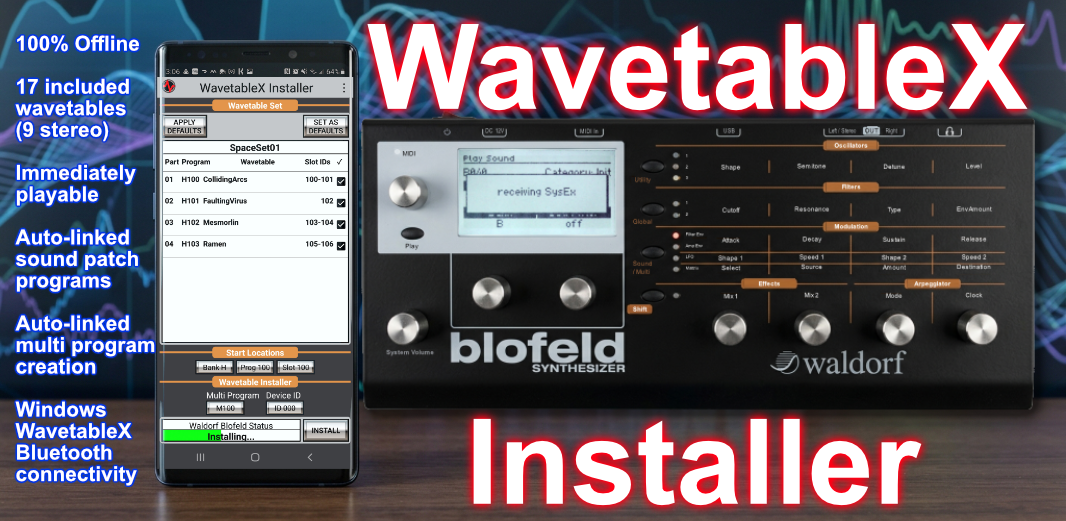
The Android WavetableX Installer is the Android companion app for the Windows WavetableX application, allowing you to install wavetable sets onto any Waldorf Blofeld synthesizer without the need of a computer.
From the initial screen showing the Wavetable Set List, press a wavetable set (do not long press it), then the Wavetable Set screen displays the wavetables within that set.
From there you can check which wavetables to install, set the starting locations of the set (bank, program, wavetable slot), choose a multi program (select none if you don\'t want one), and the target Blofeld device ID (0 is the default).
Use the INSTALL button to install the wavetables onto a Blofeld connected via USB.
The app's Waldorf Blofeld Status progress bar will show the installation progress. The Waldorf Blofeld will show "receiving SysEx" on it's display for each wavetable, sound patch, and multi-program it decodes successfully.
From the initial screen showing the Wavetable Set List, long press a wavetable set, or press EDIT, to enter edit mode.
Edit mode shows the selection checkboxes. Using the checkboxes, check the ones to delete, then press DELETE.
Press DONE when finished to exit edit mode.
The APPLY DEFAULTS and SET AS DEFAULTS buttons on the Wavetable Set screen allow you to define defaults to be applied to wavetable sets.
To create a default, select the start locations you want as the default by setting bank, program, slot, multi program, and device ID values you want to use as the default, then press the SET AS DEFAULTS button.
To apply default settings to a wavetable set, press the APPLY DEFAULTS button, making the set use the new settings from your defined default settings.
This is useful when you want to allocate a section on your Blofeld devoted to wavetable sets.
To get more content use the FREE Windows WavetableX application\'s WAVETABLE SET MANAGER to send more wavetable sets to the Android WavetableX Installer via Bluetooth.
During transfer the Windows WavetableX and Android WavetableX Installer will show the progress of the sets being sent to Android.
The Android Wavetable Installer shows the progress in its Windows WavetableX Status progress bar next to the Bluetooth symbol, which turns blue during transfer.
The Windows WavetableX application can create custom wavetables from scratch or from real audio sources and provides powerful easy to use wavetable processing features.
To send a wavetable to the Android WavetableX Installer via Bluetooth, the wavetable must be packaged within a wavetable set, using the Windows WavetableX's WAVETABLE SET MANAGER, which can send wavetable sets to the Android WavetableX Installer via Bluetooth.
The Android Wavetable Installer comes with free built-in wavetable sets. These sets can be removed and restored later if desired.
To restore built-in sets use menu option "Restore Built-in Sets". This will restore the built-in wavetable sets.
Any user saved settings for the sets will be returned to their initial state.
If a set still exists, you will be asked if you want it restored or not.
Are you sure you want to restore built-in sets?